

If you're looking to track pages on websites that require login authentication, the answer is yes – it is possible. Please note that this feature is only available on paid plans.
How It Works
Monitoring password-protected pages is a two-step process:
- Configure authentication - Set up your login credentials once
- Select when monitoring - Choose the configuration when adding a page to monitor
Step 1: Configure Authentication
Before you can monitor password-protected pages, you need to set up an authentication configuration:
- Go to Authentication Settings
- Click "Add Authentication Configuration"
- Fill in the required details:
- Name - A friendly name to identify this configuration (e.g., "My Company Portal")
- Login URL - The URL of the login page
- Username/Email - Your login credentials
- Password - Your password
- Form fields - CSS selectors for the username field, password field, and submit button
- Save the configuration
You can create multiple authentication configurations for different websites.
Step 2: Add a Page to Monitor
Once your authentication is configured:
- Go to add a new page to monitor
- Enter the URL of the password-protected page you want to track
- If an authentication configuration exists for that website's domain, a "Login Authentication" option will appear
- Select the appropriate authentication configuration from the dropdown
- Complete the rest of the setup as usual
The system automatically detects and shows only authentication configurations that match the domain of the URL you're monitoring. For example, if you're monitoring https://app.example.com/dashboard, it will show authentication configs set up for example.com.
Can You Also Track Files Behind Login Authentication?
If you want to track files such as PDFs, Excel spreadsheets, CSVs, or Word documents, you're in luck. These types of files can also be tracked, even if they are behind login authentication. Simply provide the link to the file and select the appropriate authentication configuration.
Logins That Require a One-Time Code (2FA)
If a login asks for a one-time code (a two-factor step) after the password, PageCrawl can complete it automatically. On the authentication configuration, turn on Reuse login session, then turn on Sign in with OTP and choose a Code source:
- Authenticator app (TOTP): Paste the authenticator secret from the site's two-factor settings (the "enter this key manually" text shown under the QR code, or the full
otpauth://link). PageCrawl generates the current code at sign-in, the same way an authenticator app does. - Emailed code: Forward the login-code emails to the dedicated address PageCrawl generates for you, or set the site account's email to that address. PageCrawl reads the code and finishes signing in. Set "Only accept codes from" to the sender's email or domain so nothing else is mistaken for a code.
Because the session is reused between checks, the code step only runs on the first sign-in or when the session expires, not on every check.
Note: Emailed codes add a short wait to each sign-in while the forwarded message arrives. The Standard plan has a tighter per-check time budget, so a slow email can cause the check to time out before the code lands. For emailed codes, use the Enterprise or Ultimate plans, which allow longer checks. Authenticator-app codes are generated instantly with no wait, so they work on any paid plan, including Standard.
Authenticator apps and emailed codes are the supported two-factor methods. SMS text-message codes and physical security keys are not supported.
HTTP Basic Authentication
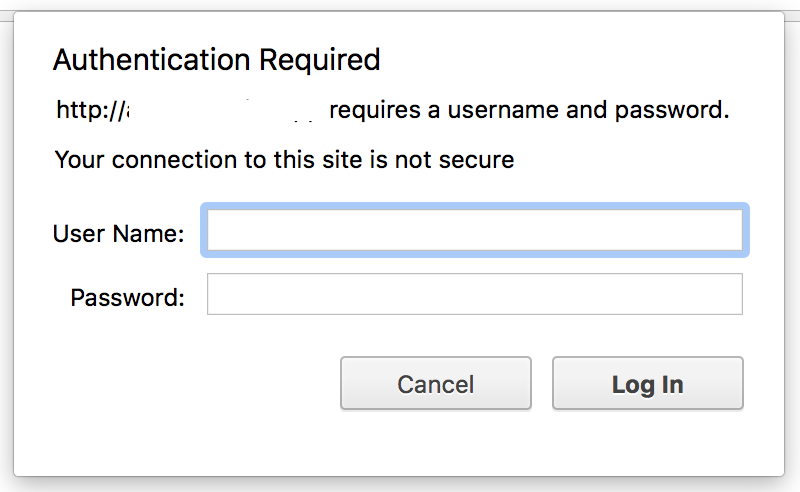
In case the website is using "HTTP Basic Authentication" (the browser popup that asks for credentials), you can enter the credentials under "Advanced Settings" when setting up your monitored page. This is different from form-based login authentication.